
Track What Visitors Do on Your Webflow Site
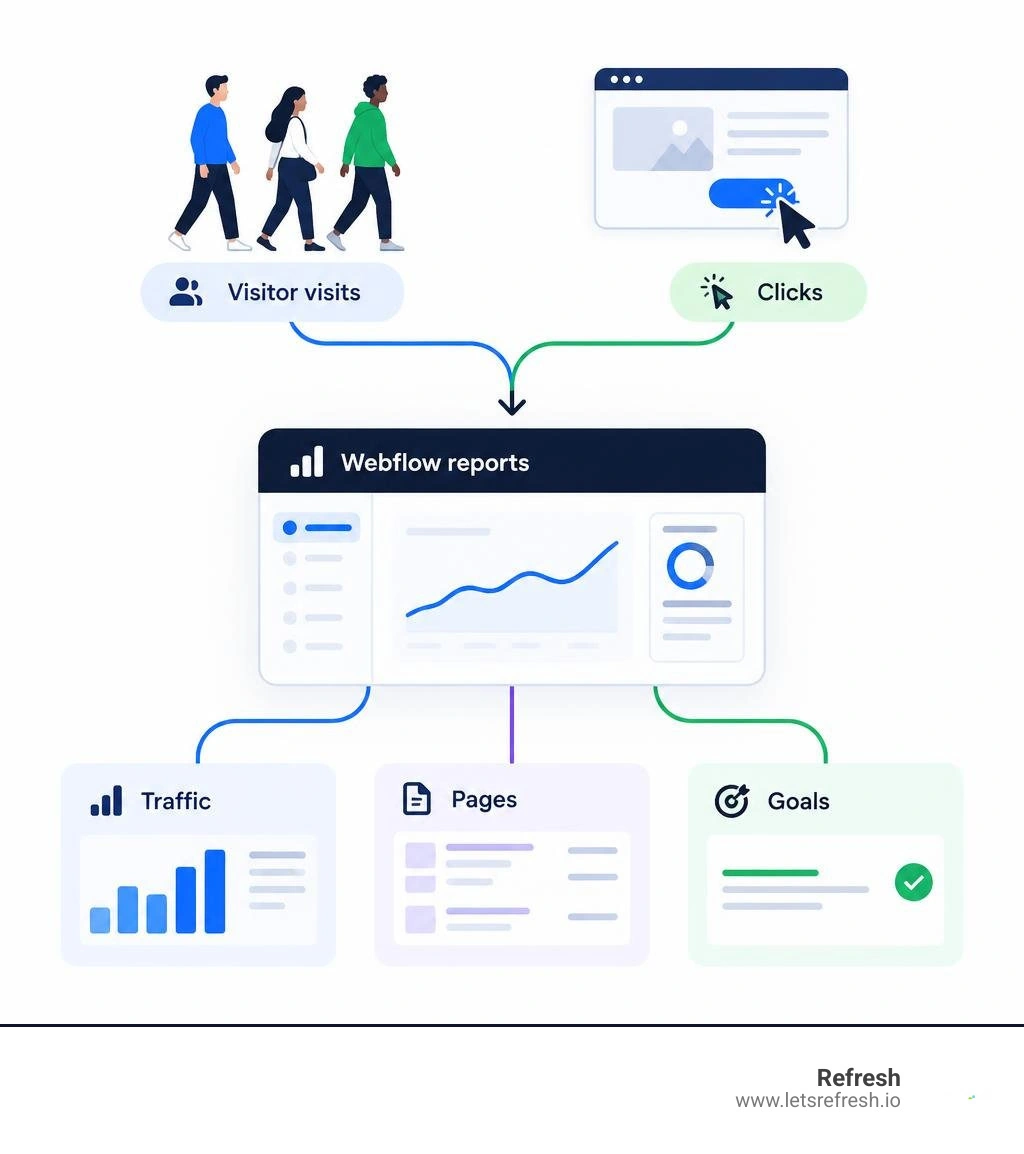
To track traffic and performance in Webflow, open your site's Insights settings, turn on Analyze tracking, choose a tracking method, and publish. Then check the site overview for visits and traffic sources, and open page reports to see which pages and links get attention. Set a custom goal for a key action, such as a pricing-page click, so you can measure more than visits.
Those numbers help you decide what to improve next: the page bringing in visitors, the call to action they miss, or the source sending people who engage.
At Refresh, after helping build and launch more than 200 websites, our team uses webflow site analytics to connect visitor behavior with practical site improvements.
Understanding your traffic starts with your infrastructure. Exploring webflow hosting plans and comparing webflow hosting pricing clarifies performance capabilities for teams asking, "does webflow host websites?" with built-in analytics support.
Core Architecture and Capabilities of Webflow Site Analytics
Understanding how your audience navigates your digital presence requires a measurement foundation that doesn't slow down your site or compromise user trust. Webflow stands out as our preferred platform because its built-in analytics engine runs directly on top of Webflow Hosting, eliminating the need for heavy third-party tags to capture foundational traffic.
According to the official Intro to Webflow Analyze – Webflow Help Center, the system relies on modern browser local storage rather than traditional HTTP cookies. This cookieless architecture collects strictly non-personally identifiable information (non-PII). Instead of tracking users across the broader web, it observes isolated interactions on your specific domain.
The native reporting engine retains up to 90 days of continuous data, allowing you to compare monthly trends, seasonal shifts, and marketing campaign performance directly within the Webflow Designer and dashboard. Its page reporting interface tracks up to 150 of your top-performing site pages, calculating exact visits, duration, and conversion behavior without requiring manual data pipes.
Activating Tracking and Custom Goals in Webflow Site Analytics
Enabling native measurement takes just a few clicks in your site settings. Navigate to Insights > Settings > General, toggle tracking on, select your preferred tracking method (such as always-on, opt-in, or opt-out depending on your compliance requirements), and publish your project.
Once published to production, your live site events begin populating the dashboard within roughly 30 minutes. From there, you can define custom tracking goals to monitor specific user actions—such as primary call-to-action (CTA) clicks, consultation requests, or newsletter signups. Tracking these milestones provides direct insight on how to increase website conversions over time.
Calculating Core Metrics: Sessions, Bounce Rates, and Audience Attributes
To interpret your performance accurately, you need to understand how Webflow calculates core metrics:
- Sessions: A session represents a continuous period of user interaction. It automatically expires after 30 minutes of visitor inactivity.
- Bounce Rate: Unlike legacy platforms that count single-page visits as bounces regardless of engagement, a session in Webflow counts toward the bounce rate percentage only if a visitor arrives and leaves without clicking an interactive element or navigating to another page.
- Audience Attributes: Webflow groups anonymous traffic by geographic region, device viewport (desktop, tablet, mobile), referral source, and UTM parameters.
Keeping these metrics healthy begins with smooth technical delivery. Implementing disciplined Webflow page speed optimization ensures fast load times, reducing immediate drop-offs before interactive tracking scripts can initialize.
Visualizing Visitor Behavior With Analyze Mode, Clickmaps, and Scroll Depth

Beyond high-level traffic numbers, Webflow lets you inspect on-page engagement visually through Analyze mode. When viewing your site inside Webflow, you can overlay real visitor engagement data directly onto the visual canvas.
This visual interface provides three critical layers of on-page intelligence:
- Clickmaps: See exact click frequencies and percentage distributions across buttons, links, and cards.
- Scroll Depth: Measure how far down the page your audience scrolls before dropping off.
- Average Page Fold: Identify where the viewport cuts off across different screen sizes so your most critical value propositions remain visible.
Combining these visual insights with thoughtful Webflow UX design allows you to reposition underperforming elements and guide visitors intuitively toward high-value conversion points.
Click Event Labeling Hierarchy and CMS Collection Tracking
To present clear reports without manual tag management, Webflow generates click event labels automatically by inspecting the Document Object Model (DOM). It identifies elements using the following strict hierarchy:
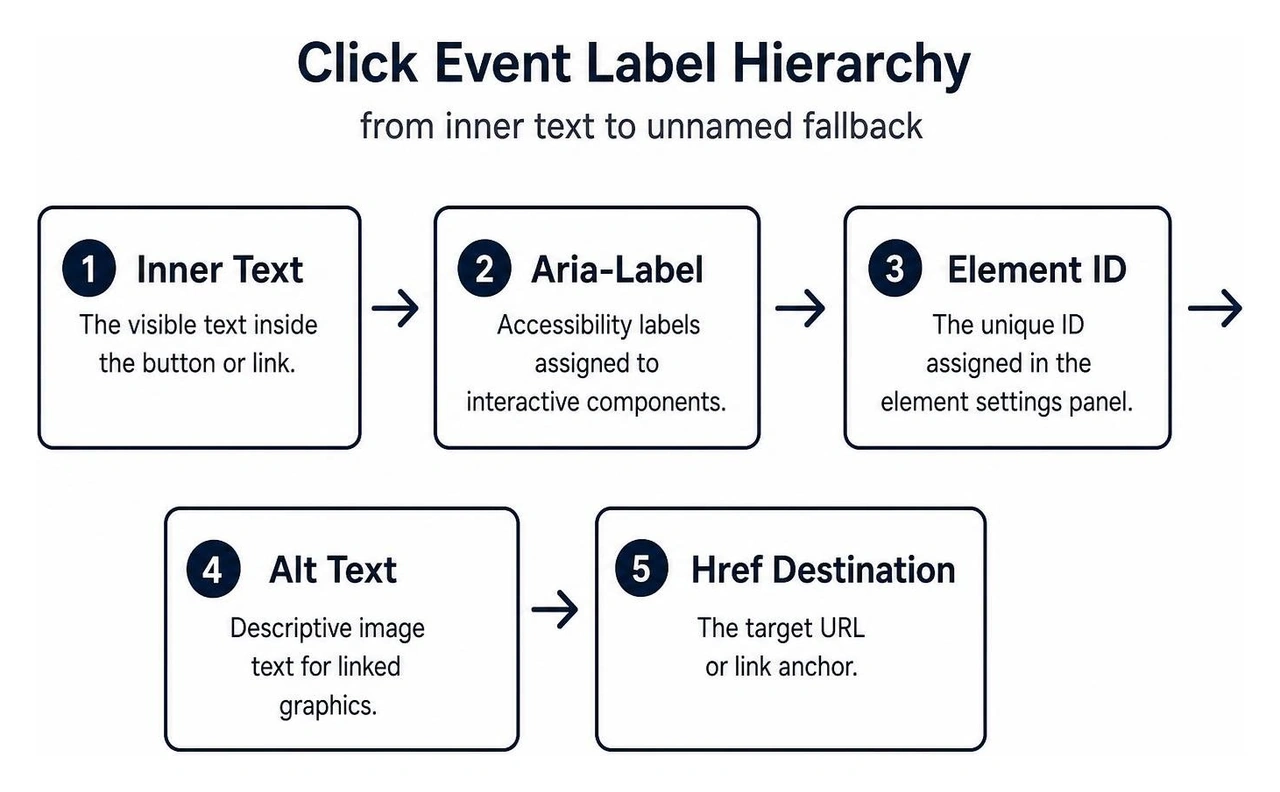
- Inner Text: The visible text inside the button or link.
- Aria-Label: Accessibility labels assigned to interactive components.
- Element ID: The unique ID assigned in the element settings panel.
- Alt Text: Descriptive image text for linked graphics.
- Href Destination: The target URL or link anchor.
- Image Source (img src): The static asset path if no other label exists.
If an element lacks all of these attributes, Webflow assigns an "Unnamed [Element Type]" label. Furthermore, when dynamic CMS Collections update—such as a new featured blog post taking the top spot on your homepage—the reporting dynamically adapts to track the newly published content under its unique attributes.
Integrating Webflow Ecosystem Tools: Optimize, Localize, and AEO
Webflow connects its analytics directly with surrounding native tools:
- Webflow Optimize: Review A/B testing variants seamlessly. Analyze surfaces comparative engagement and conversion metrics across multiple layouts without requiring external split-testing code.
- Webflow Localize: Evaluate international engagement by reviewing localized pages, aggregating regional interactions into comprehensive multi-language reports.
- AI and Generative Engine Optimization (GEO): On qualifying Team and Enterprise platform plans, Analyze incorporates Generative Engine Optimization analytics. This specialized feature tracks visits from Large Language Model (LLM) bots, surfaces AI-referred traffic, and monitors how AI search engines cite and represent your content across generative answers. Combining these insights with SEO optimized Webflow sites keeps your content discoverable in an evolving AI search landscape.
Privacy Architecture and Compliance With Webflow Site Analytics
Selecting the right analytics configuration depends on your reporting requirements, technical resources, and data privacy commitments. Webflow remains our preferred platform for native traffic, clickmap, and Generative Engine Optimization (GEO) reporting because it combines fast setup with direct integration inside the Designer, all while using a cookieless, non-PII first-party architecture.
Privacy Regulations, Cookieless Data, and Consent Management
Because Webflow Analyze uses anonymous local storage identifiers instead of persistent tracking cookies, it operates cleanly under global privacy standards like GDPR and CCPA. Depending on your operational footprint, choosing an opt-in or opt-out configuration within your site settings ensures full compliance alongside your existing consent banners, without requiring heavy cookie-consent management overhead.
Advanced Troubleshooting and Discrepancy Resolution
When reviewing your native Webflow Analyze numbers, you may occasionally notice minor fluctuations in reported visits or engagement. These variations typically stem from measurement nuances rather than tracking errors:
- Ad-Blockers: Some privacy extensions can limit client-side scripts, whereas native first-party logging remains more resilient.
- Session Definitions: Webflow ends sessions after 30 minutes of inactivity and treats zero-click single-page visits as bounces.
- Staging Traffic: To avoid skewed numbers, exclude staging domains (
webflow.io) inside your reporting filters.
For teams who also want to connect Google Analytics to their Webflow site, the native integration available in your site settings automatically adds tracking scripts to every page. When using Webflow Ecommerce with this connection active, your site automatically transmits standard viewed_product, add_to_cart, and purchase events without manual code. Review the Integrate Google Analytics with Webflow | Quick connect guide to verify your connection parameters.
Frequently Asked Questions About Webflow Analytics
How soon does visitor tracking data appear in Webflow?
Once you enable tracking in your settings and publish your project, initial traffic metrics and visitor interactions begin populating your reporting dashboard within 30 minutes.
Does Webflow Analyze require cookie consent banners?
Because Webflow Analyze uses anonymous local storage keys rather than tracking cookies and collects zero personally identifiable information, it avoids cookie consent requirements in many jurisdictions. However, full compliance depends on your selected tracking mode (such as opt-in or opt-out) and regional legal guidelines.
How are custom goals and click event labels assigned?
Webflow reads the underlying DOM structure to assign readable names automatically. It inspects inner text first, followed by accessibility labels, element IDs, image alt tags, and target destination URLs to classify each goal.
Conclusion
Measuring visitor engagement across your website shouldn't require complex configurations or invasive tracking scripts. By mastering native Webflow site analytics, clickmap overlays, and Generative Engine Optimization metrics, you gain actionable clarity on how your audience discovers, consumes, and converts on your content.
Our team at Refresh helps growing businesses across Pittsburgh, PA, Cleveland, OH, and Charlotte, NC turn these performance insights into high-impact digital experiences through continuous design, SEO, and strategic optimization. Focus on the metrics that matter, optimize with purpose, and build an online presence that reliably scales your brand.


.avif)